Markdown to Word Converter
Convert Markdown into an editable Word document for client review. Export DOCX with headings, tables, code, images, Mermaid, and optional custom Word fonts and sizes.
When Word is the better handoff
- A client wants inline comments.
- A manager wants wording edits.
- The document still needs approval.
- The writing lives in Markdown but the feedback loop lives in Word.
If the file should look fixed and stop changing, Markdown to PDF is the better route. If the file still needs conversation, Word is usually the easier handoff.
Proof for client review
The tracked proof samples below let you inspect the same Markdown source as DOCX and PDF before you send your own file. This is the proof that matters for this route: headings stay document-shaped, tables stay readable, Mermaid still lands in the file, and code blocks survive review handoff.
Layout brief
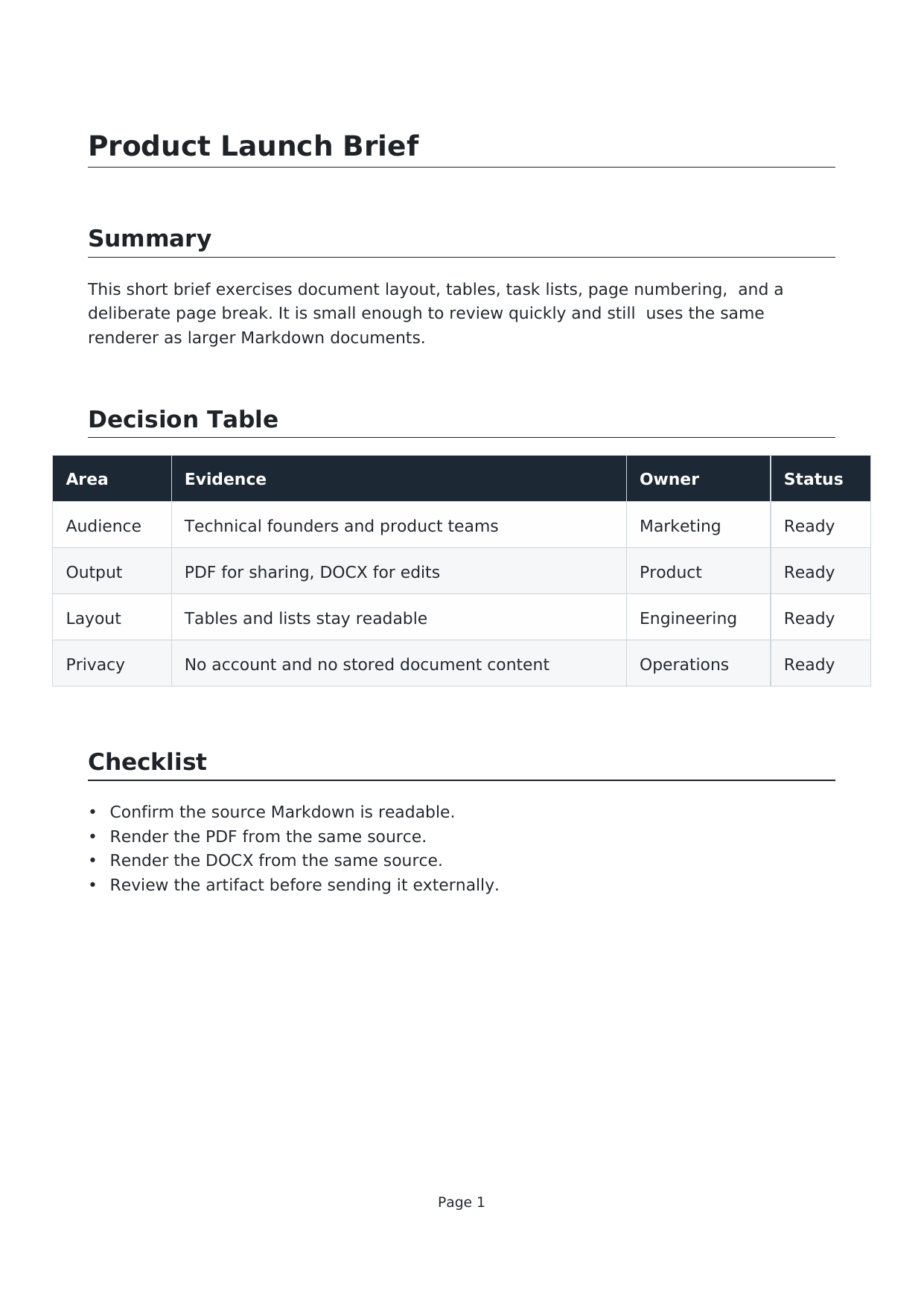
Tables, task lists, page numbering, and a deliberate page break from one Markdown source.
Markdown · PDF · DOCX
Mermaid architecture

A Mermaid flowchart rendered into PDF and DOCX with surrounding handoff notes.
Markdown · PDF · DOCX
Code theme packet

TypeScript, YAML, and SQL blocks rendered with a dark document theme and syntax highlighting.
Markdown · PDF · DOCX
How to export an editable Word document
- Paste Markdown, upload a .md file, or load a GitHub, GitLab, or Bitbucket file URL.
- Choose a document theme such as GitHub, VS Code, Dracula, Nord, or Monokai.
- Optionally open Style beside Word and choose from the supported body, heading, and code fonts and sizes.
- Click DOCX to download the Word-compatible document.
- Open the file in Word or another DOCX editor for comments, suggested edits, or approval.
What the Word export preserves
- Native heading and list structure for Word-based review.
- GitHub-flavored Markdown tables, task lists, links, and images.
- Syntax-highlighted fenced code blocks.
- Optional Word body, heading, and code fonts and sizes.
- Mermaid diagrams rendered into the document.
- Opt-in page breaks and page numbers.
Honest limitation
Custom Word typography affects DOCX only, while the browser preview keeps the selected theme. Fonts are referenced rather than embedded, so the receiving computer needs them installed for an exact match.
depapel is good at turning Markdown into a clean review document. It is not a custom Word template system, mail-merge tool, or SharePoint or Office automation layer. If template mapping or enterprise Word workflow automation is the deciding requirement, use a Word-first tool built for that job.
Markdown to Word questions
Can depapel convert Markdown to an editable Word document?
Yes. depapel exports Markdown to Word-compatible DOCX or genuine legacy DOC for review, comments, and handoff in Word.
When should I choose Word instead of PDF?
Choose Word when the document is still under review and the receiver needs comments, suggested edits, or approval in Word. Choose PDF when the layout should look fixed and the document is ready for final delivery.
What survives in the Word export?
Headings, lists, GitHub-flavored tables, links, images, syntax-highlighted code blocks, Mermaid diagrams, page breaks, and page numbers carry into Word output. DOCX and DOC also preserve automatic Hebrew/RTL layout and mixed-direction text handling.
Can I choose fonts and heading sizes for Word?
Yes. Open Style beside the Word download, switch from Default to Custom, and choose from the supported body, heading, and code fonts and point sizes. The settings affect DOCX and DOC output; fonts are referenced rather than embedded, so the receiving computer needs them installed.
Is this a custom Word template or mail-merge system?
No. depapel focuses on converting Markdown structure into a clean DOCX. It does not claim Word template automation, mail merge, or advanced equation layout.
Are Markdown files stored when I create a Word document?
No. Conversion runs only for the duration of the request, and submitted document content is discarded after the Word file is generated.
Related pages
Open the converter, Markdown to DOCX, Markdown to PDF, GitHub README to PDF or DOCX, read Markdown to Word for Client Review, compare depapel vs md2docx, compare depapel vs Pandoc, or read the FAQ.